Inspect and Edit Knowledge Stores
The editor Knowledge window (Unity and Unreal) shows the mutable
knowledge bases in the current server session. These are the named stores
your agents write to with WriteToMemory
and read back with Retrieve. The window
lists them, shows their records, and lets you add, change, or delete records.
You can also save and load the whole session's memory, or export and import a
single store.
Typical questions it answers: did the NPC actually remember that?, what does the retriever find for this phrase?, does my save file restore what I expect?
Experimental
Mutable knowledge bases and game memory are experimental (protocol v20). The window, the wire messages, and the TMKB file format may change between releases.
Prerequisites
- The Tryll Unity or Unreal plugin installed.
- Nothing else. The window launches the bundled server and opens the shared editor connection itself. You do not need Chat or Play mode running, and it does not wait for registered models to download.
Open the window
| Editor | Menu |
|---|---|
| Unity | Window → Tryll → Knowledge |
| Unreal | Window → Tryll → Tryll Knowledge |
The status bar steps through Connecting… → Configuring session… → Ready. If the connection fails, the status turns red and offers Retry.
The window shows the stores of the shared editor session, the same connection that Chat and the Dialog Lab use. Stores that an agent created in Chat appear here. A standalone game build or a Python client has its own session, so its stores do not appear.
Closing the window releases the connection. It does not stop the server.
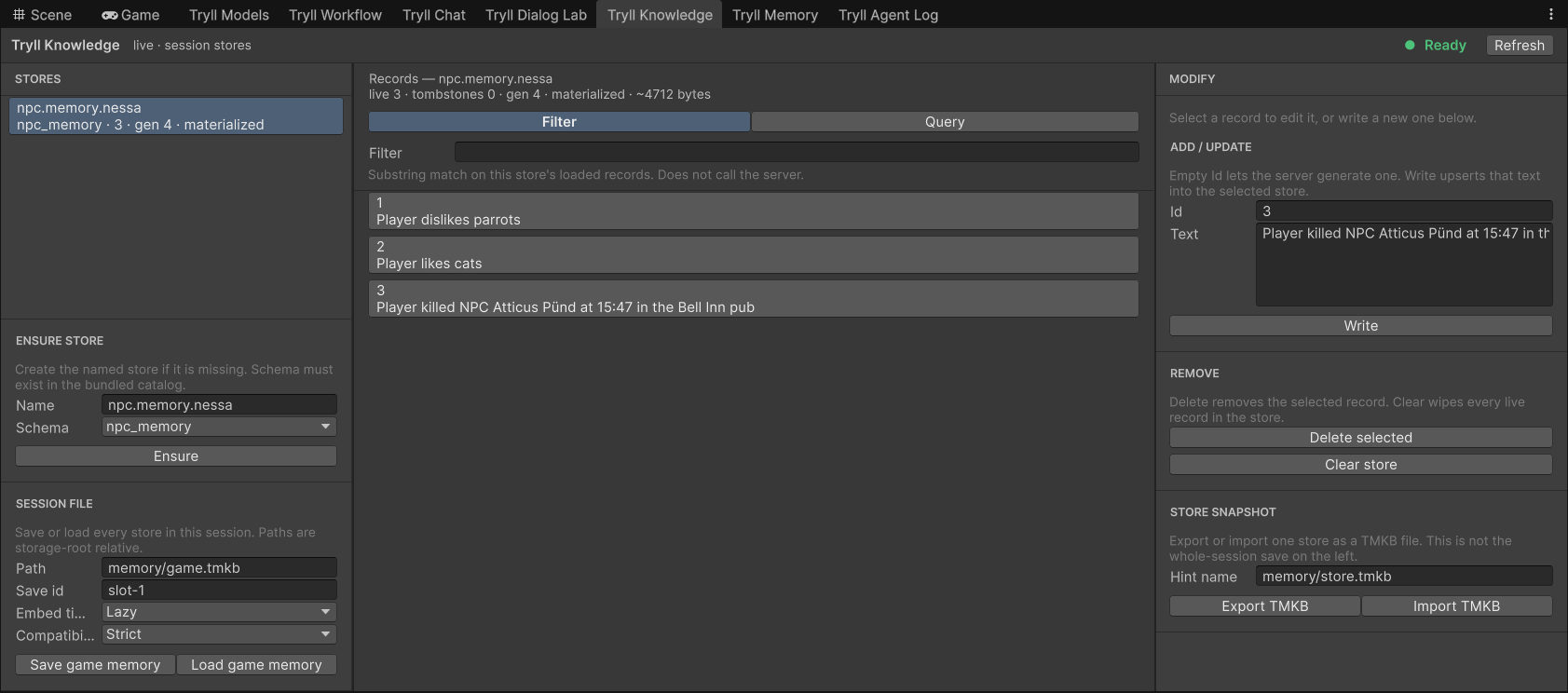
3 selected for editing. Unity shown; the Unreal panel has the same layout, with field labels above the fields instead of beside them.Refresh
The window never polls, and it does not load anything when it opens. Click Refresh to list the session's stores and load the selected store's records. If no store is selected, the first one is selected for you.
Refresh is disabled until the session is Ready. Every action that changes data (Write, Delete, Clear, Load, Import) refreshes the view when it finishes.
Read the store list
The left column lists every mutable store in the session, whichever way it was
created: by an agent's WriteToMemory or Retrieve node, by game code, by
Ensure in this window, or by loading a game-memory file.
Each row has the store name, then a summary line:
| Token | Meaning |
|---|---|
npc_memory |
The schema the store uses, from the bundled schema catalog. |
3 |
Live records (not deleted). |
gen 4 |
Write generation. Every successful write, delete, or clear increases it, so a changed number tells you something wrote to the store. |
materialized / lazy |
materialized: every record has its embedding vector. lazy: records were loaded with Lazy embed timing and their vectors are built the first time the store is used. |
Click a row to load that store's records.
Create a store
Ensure Store creates a store with the given Name and Schema, or
selects it if it already exists. The Schema dropdown lists the schemas in
the bundled catalog (data/schemas.json). The server checks the schema either
way.
Selecting a store re-creates it if it is gone
Loading a store's records always ensures the store first. If a store disappeared from the session (for example, after Load game memory from a file that does not contain it), Refresh warns "Store '…' is no longer present." and then re-creates it empty, using the schema in the Ensure Store section.
Find records
The centre column starts with a stats line for the selected store:
Tombstones are deleted record slots the server keeps until it compacts the store. ~bytes is the server's estimate of the store's memory use.
Two modes switch what the list shows:
- Filter (default) — a case-insensitive substring match on the record id or text. It runs only in the editor, on the records already loaded, and does not call the server.
- Query — dense retrieval against the store, the same kind of search a
Retrievenode runs. Enter text, set Top K (how many nearest records to return), and click Run query. Results are listed best first, each with its distance (d=0.123; lower is closer). They replace the list until you switch back to Filter.
Use Query to check retrieval. If a phrase the player might say does not bring back the record you expect, the problem is in the stored text or the query, not the prompt.
The window loads at most 1024 records per store. For a larger store, a banner says so and the list shows the first 1024.
Add, change, and delete records
Select a record to load its Id and Text into the right column.
- Write creates the record, or replaces it if the Id already exists.
Leave Id empty to have the server generate one; the new id is put back in
the field. Write a standalone sentence, the same shape a
WriteToMemorynode stores ("Player killed NPC Atticus Pünd at 15:47 in the Bell Inn pub"), so that retrieval works on it out of context. - Delete selected deletes the selected record. The store stays.
- Clear store deletes every live record in the store, after a confirmation.
Changes apply to the live session immediately. A running agent sees them on its next retrieval.
Save and load game memory
The Session File section at the bottom left saves or loads every store in
the session as one TMKB file. This is the same operation as
SaveGameMemory / LoadGameMemory in game code, so you can use it to check
your save files from the editor.
| Field | Meaning |
|---|---|
| Path | File path relative to the server's storage root, e.g. memory/game.tmkb. In the editor this lands under your storage folder (TryllStorage). |
| Save id | Your label for the save slot, stored beside the snapshot. Compare it with the dialog snapshot's save_id to detect a mismatched pair. |
| Embed timing | Used on load. Lazy builds vectors the first time each store is used; Now builds them all during the load. |
| Compatibility | Used on load and on Import TMKB. Strict rejects a file whose schemas differ from the catalog; Allow schema drift imports it with a warning. |
Save game memory writes the file and reports how many stores were saved. Load game memory replaces the session's stores with the file's contents, then refreshes.
See Save and Load Agent State for how game memory and dialog snapshots fit together, and Server Configuration → Saves for where relative paths resolve outside the editor.
Export or import one store
The Store Snapshot section at the bottom right works on the selected store only:
- Export TMKB opens a save dialog and writes the store to a
.tmkbfile you choose on your machine. Hint name is the suggested file name. - Import TMKB opens a file dialog and replaces the selected store with the file's contents. The snapshot's store name must match. It uses the Compatibility setting from the Session File section.
| Store snapshot (right) | Session file (left) | |
|---|---|---|
| Covers | One store | Every store in the session |
| File location | Any file you pick on your machine | A path relative to the server's storage root |
| Embed timing | Not used | Used on load |
| Save id | Not used | Used |
Use a store snapshot to hand one NPC's memory to a teammate or to keep a test fixture. Use the session file to check what a real save contains.
Banners
A single banner under the toolbar shows problems:
| Message | Meaning |
|---|---|
| Showing the last good view. + an error | A Refresh failed (or the store was busy) after a successful one. The tables still show the last good data. |
| This store has more records than the window can show. Showing the first 1024. | The store has more than 1024 records. |
| Store '…' is no longer present. | The selected store left the session; see Create a store. |
| No matching records. | A Query returned no hits. |
| Write rejected (or the server's reason) | The server refused the write. |
| Compatibility warnings | A load or import with Allow schema drift found differences. |
The error codes reference lists the 8xxx
storage errors (MutableKbSnapshotInvalid, UnknownMutableKb,
SavesDisabled, …) that can appear here.
Unity and Unreal differences
The windows behave the same way. The small differences:
| Unity | Unreal | |
|---|---|---|
| Field labels | Beside the field | Above the field |
| Top K | Any value from 1 | 1–64 |
| Buttons before the session is Ready | Enabled, but do nothing | Disabled |
| Selection after a script reload | Restored | Not restored |
Related
- Save and Load Agent State — game memory next to dialog snapshots
- WriteToMemory node — how agents write to these stores
- Retrieve node — how agents read them
- Retrieval-Augmented Generation (RAG) — top-K and dense search
- Inspect Server Memory — the neighbouring editor window for RAM and VRAM
- Wire Protocol —
EnsureMutableKb,MutableKbQuery,SaveGameMemory, and the other store messages