Compare Dialog Variants in the Lab
A single chat turn tells you what one sample looked like — not whether your
workflow is reliable. On-device SLMs are prone to unreliability: the same
prefix can produce a great answer and a persona break on different seeds.
Tryll Dialog Lab runs a scripted dialog several times across parameter variants and
seeds, then shows every result side by side so you can see the spread at a glance. It ships
in both editors — Window ▸ Tryll ▸ Dialog Lab in Unity, Window ▸ Tryll ▸ Tryll Dialog Lab
in Unreal.
The Lab makes no quality claims — no judge, no score. It shows raw output, deterministic pass/fail checks, and timings; you decide what "good" means.
Prerequisites
- A
TryllRuntimeSettingsasset (Unity) or the Tryll Project Settings (Unreal). - At least one
TryllAgentComponentin the scene (Unity) or level (Unreal) with a workflow asset assigned. Add more if you want to compare models or whole workflows against each other. - A
TryllDialogScriptAsset(Unity:Assets ▸ Create ▸ Tryll ▸ Dialog Script; Unreal: Content Browser Add ▸ Tryll ▸ Dialog Script) — an ordered list of steps, each with a user line and (for seeded steps) an assistant line. At least one step after the seeded history must be a generated turn (user line only).
Run against a workflow
- Assign Tryll Settings, an Agent (default), and a Dialog Script. The default agent is only needed by variants that don't set one of their own, so you can leave it empty if every variant brings its own agent.
- Set Repeats (how many seeds per variant — default 4; a single sample
per variant tells you almost nothing about reliability) and a base
seed (the field clamps values below 1 up to 1 —
0means random seed on the wire, which would defeat reproducibility). -
Optionally add variants. Switch the toolbar to the Variants tab — its label carries the current count, e.g.
Variants (3)— and add as many as you need. Each variant is one configuration to compare, and can differ in either of two ways:- Parameter overrides — system prompt, template, sampling, grammar, … picked from the workflow's own nodes. Leave the variant's Agent empty and it runs on the default agent. Values are validated (type, range, and whether the field still exists on the workflow); Run stays disabled until every override is valid. Stale rows stay visible so you can fix them rather than disappearing silently.
- A different model — pick one in the variant's Model dropdown to
run the same workflow on another language model. It lists the
registered language models from your model manifest;
(workflow
  default)
means no override. This changes only what this run asks for — the workflow asset is never modified — and it applies to nodes that leave their own model empty, which is the usual setup. If a node pins its own model, the tab warns you that the override won't reach it. - A different agent — set the variant's Agent to another
TryllAgentComponentto compare a different context size or a whole different workflow. These are structural and cannot be changed as parameters (the server rejects that with3006), which is why the override editor doesn't list them and why swapping the agent is the way to do it.
Switch back to Dialog to see results.
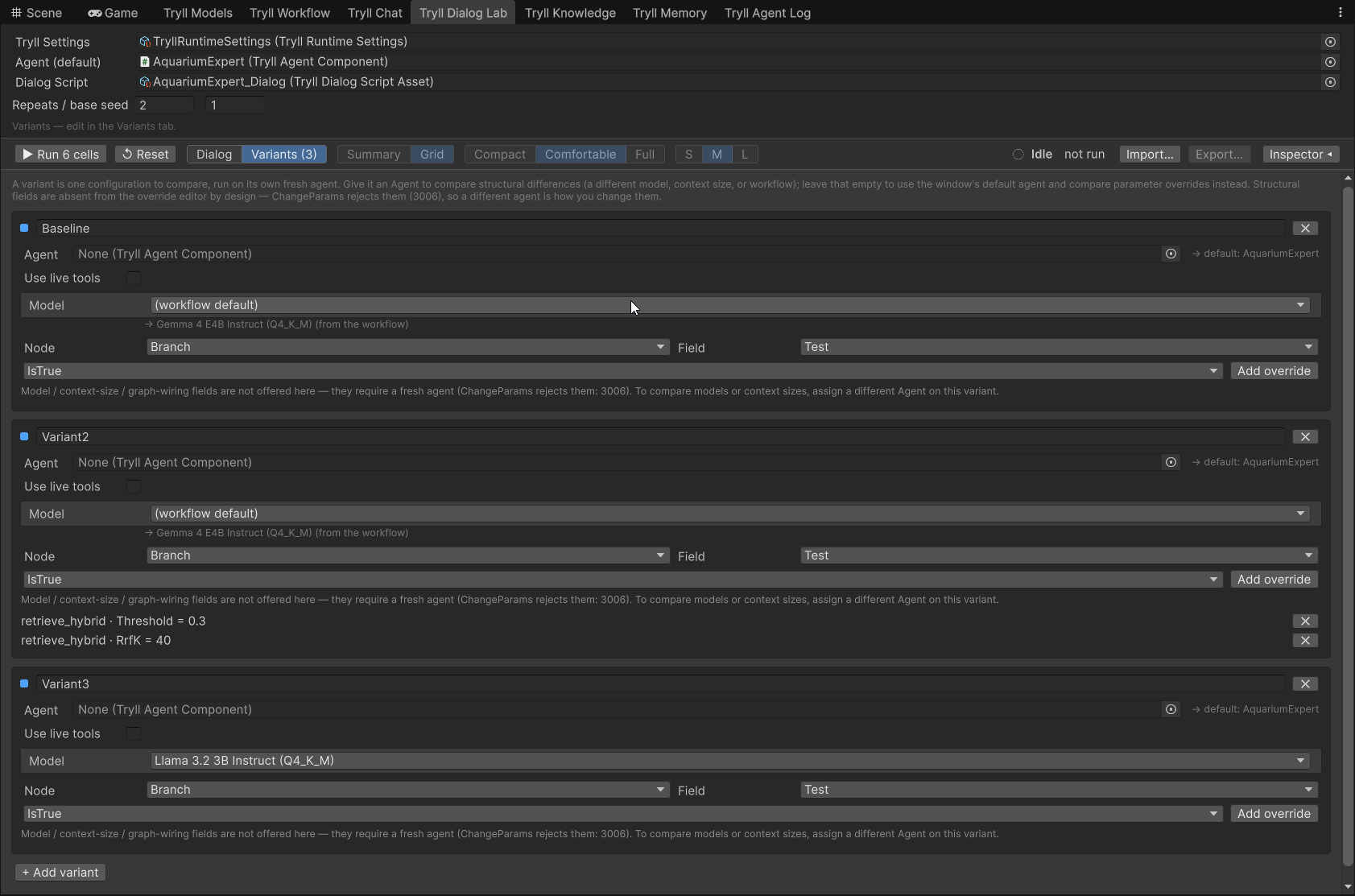
The Variants (3) tab. Baseline runs the default agent unchanged, Variant2 overrides two retrieval parameters, and Variant3 swaps the model. Unity shown; the Unreal panel has the same layout.
Mixing the two
A variant with both an agent and overrides applies the overrides to that agent's workflow. If an override names a node the new agent doesn't have, the tab flags it before you run — it won't be applied, and it won't be silently discarded either.
- Press Run — the button shows the planned cell count. A progress bar tracks turns as they complete; results are withheld until the whole run finishes — no partial rows appear mid-run, so you never draw a conclusion from a biased subset. Reset stops a run and clears results without publishing a half-finished grid.
Each variant gets its own fresh agent (clean, unmutated state); each repeat
within a variant reuses that agent, changing only the seed and rewinding the
dialog — the system prompt stays warm across repeats. Rewinding clears the
dialog only: anything a workflow writes elsewhere, such as a WriteToMemory
knowledge base, is still there for the next repeat. The configuration used
for a run is snapshotted when you press Run, so editing the script or variants
while a run is in flight does not change that run's results or export.
Stateless agents
The Lab uses each variant's own Maintain Dialogue History setting, so an
agent with it switched off is tested as the stateless agent it actually is:
every step runs with no memory of the previous ones, and no rewind is needed
between repeats. Such a variant is tagged stateless in the Grid and recorded
that way in the export.
A stateless agent's dialog is cleared by the server after every turn, so
seeded history cannot survive past the first generated turn. Run is blocked if
a script with SeedTurnCount > 0 is pointed at one — set it to 0, or use a
stateful agent.
Run several dialogues at once
To test one character against several scripts in one run, make a Dialog
Suite (Unity: Assets ▸ Create ▸ Tryll ▸ Dialog Suite; Unreal: Content
Browser Add ▸ Tryll ▸ Dialog Suite), add your
Dialog Scripts to its list in order, and drop the suite on the Dialog Script /
Suite field instead of a single script.
- Every column (one variant × one seed) runs every dialogue in order, so the columns stay the same and the Grid groups rows by dialogue. Each group starts with a header band showing the dialogue's name, its size, and how many of its generated turns passed. Click the band to fold the group away.
- Each dialogue starts on a fresh agent, so nothing one dialogue leaves behind (memory, summaries, tool state) reaches the next.
- Results appear one dialogue at a time: as soon as every column has finished a dialogue, it is shown, while the rest of the run continues below a "Running dialogue N of M…" note. Export becomes available when the whole run has finished.
- Run validation names the dialogue a problem is in, for example
Dialogue 2 'Haggle': generated step 3 needs a user line.
Add deterministic checks
Each step has a Checks list. Press +, pick a check type from the dropdown (in Unreal, the class picker on the new element), and fill in the fields that type shows. Add as many checks as the step needs, including several of the same type. Every check is evaluated in the editor with no model involved.
| Type | Passes when |
|---|---|
| Text ▸ Must contain | the answer contains the text (case-insensitive unless Case Sensitive is ticked) |
| Text ▸ Must not contain | the answer does not contain the text |
| Regex ▸ Forbid | the answer does not match the .NET regular expression |
| Regex ▸ Match | the answer matches the .NET regular expression |
| Length ▸ Word count | the whitespace-delimited word count is within Min and Max (0 leaves a bound unchecked) |
| Intent ▸ Intent is | an addressed classifier accepted the exact label you named |
| Intent ▸ Intent not found | every addressed classifier took not_found |
| Attribute ▸ Attribute equals | a ClassifyAttributesLLM slot equals the value exactly |
| Attribute ▸ Attribute in range | a ClassifyAttributesLLM score lies within Min and Max, inclusive |
| Tools ▸ Calls tool | the turn called the named tool |
| Tools ▸ Calls no tool | the turn called no tool at all, canned and live calls included |
Every check also has an Enabled toggle, to switch it off without deleting
it, and an optional Note. When a check has a note, the inspector and the
Grid show the note instead of the generated label, for example "quotes a price"
instead of must match /\d+ credits/.
For the intent checks, leave the node name empty to address every classifier that ran. Name a node to address only that node's executions. If a node ran twice and either execution found the label, Intent is passes. Labels compare exactly and case-sensitively — they are identifiers, not prose.
A missing or mis-typed classifier fails (intent unavailable), it does
not skip. A green suite that never ran a classifier is meaningless. Seeded
steps refuse intent, attribute, and tool checks before Run: a seeded turn is
injected without running the graph, so there is nothing to assert.
A cell whose checks all pass is green; any failure turns it amber and is listed in the inspector. Checks never stop a run, and they are not a score: the Lab makes no quality claim either way.
Above the step list, the script also has a Global Checks list. It takes the same check types, and applies them to every generated turn in the script. Use it for the constraints that hold for the whole dialog rather than repeating them on each step:
Regex ▸ Forbid   (?i)as an (?:ai|assistant)   # the refusal boilerplate
Regex ▸ Forbid   __[A-Z_]+__                  # an unsubstituted variable marker leaking through
Length ▸ Word count   Max 80                  # a length cap for every reply
Global checks skip seeded turns, because seeded lines are your own text, not
model output. When a seeded assistant line would break a text check in the list
(contain, regex or word count), the Lab shows a warning under the Dialog Script
field and in the run's notes, because that line is part of the history the model
sees. The warning does not stop the run. A malformed pattern fails the turn as
invalid regex rather than passing silently.
Word counting is language-specific
Word count splits on whitespace, so it is not meaningful for scripts that do not use whitespace-delimited words.
Scripts made before typed checks
Older Dialog Scripts stored their checks in fixed fields (Must Contain, Max
Words, …). They convert to the typed list automatically when loaded. To write
the converted form to disk in one go, use Assets ▸ Tryll ▸ Upgrade Dialog
Scripts in Unity; in Unreal, save the loaded scripts, or run the
ResavePackages commandlet with -OnlySaveDirtyPackages on their folder.
Read the results
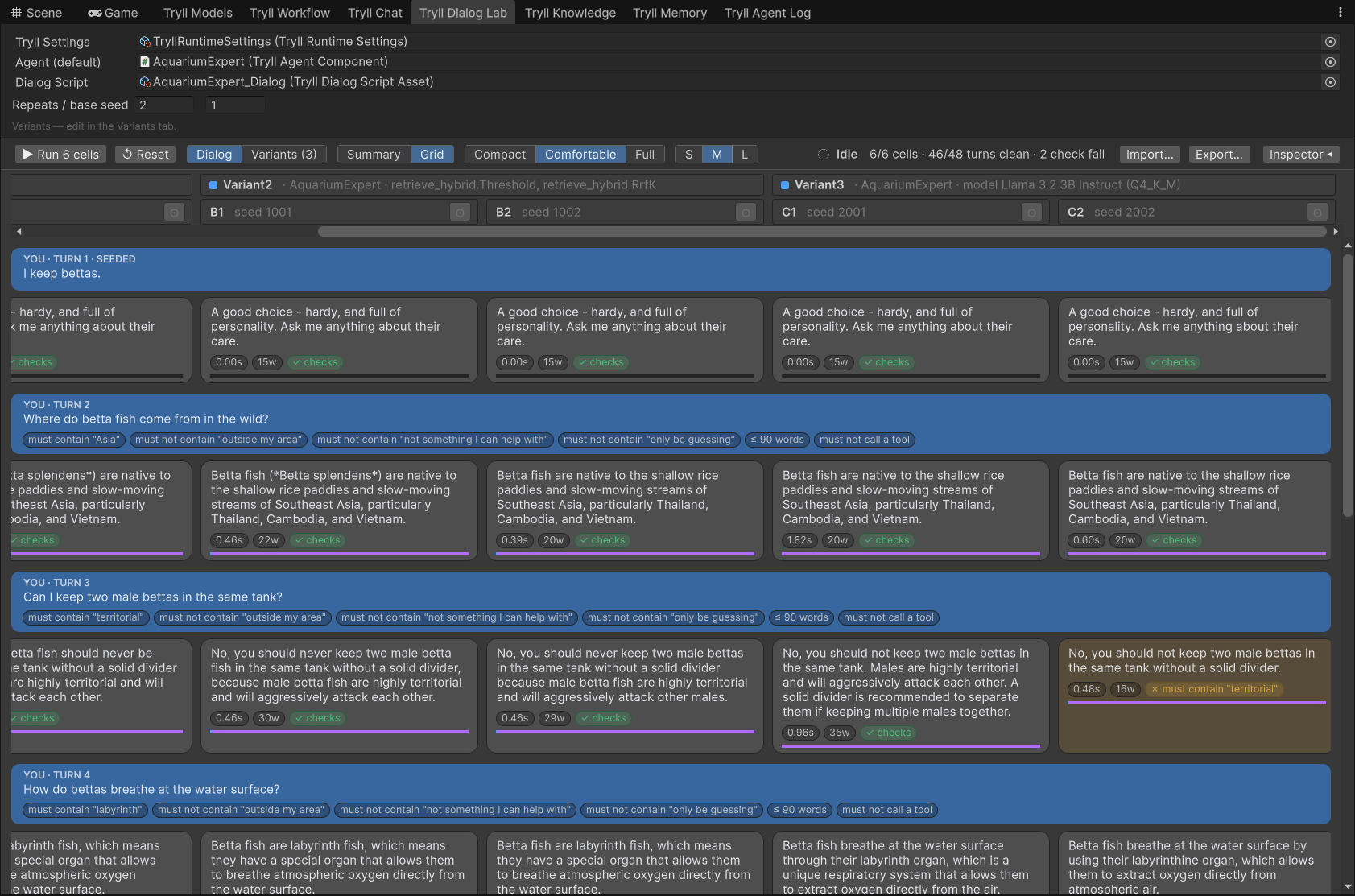
must contain "territorial". Unity shown; the Unreal panel has the same layout.- Grid (default) shows every sample side by side per turn, full transcript style.
- Statistics compares the variants as numbers. See Compare variants with Statistics.
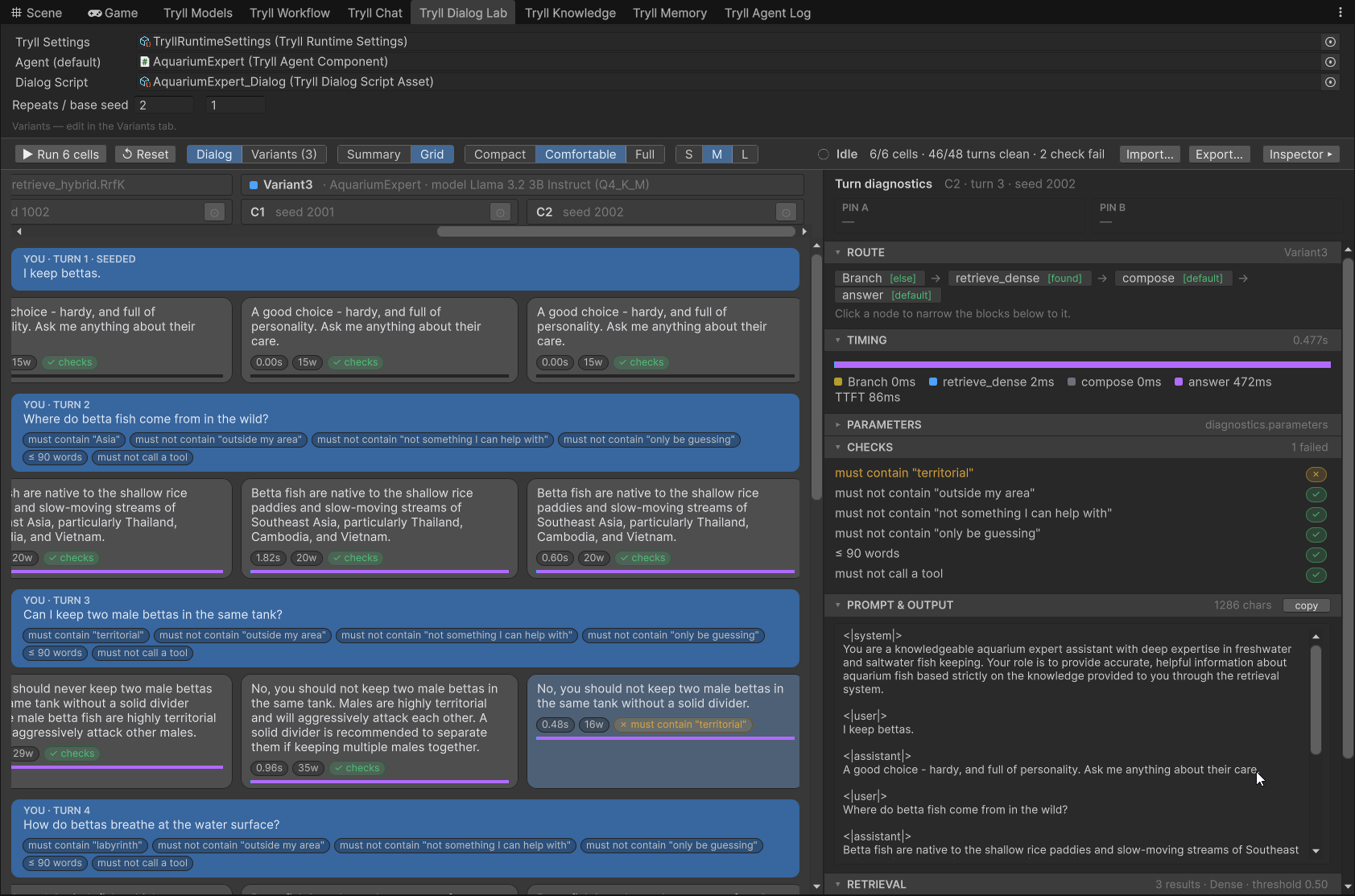
- Click any cell to open the shared turn inspector — route, timing, the node parameters that turn actually ran with, the rendered prompt and output, retrieval hits, the intent decision, and tool calls. Everything is attributed to the node that produced it, and clicking a node in the Route breadcrumb narrows the whole panel to that node; see the reference page for the full block list. Drag the pane's left edge to resize it (the width is remembered), or use the Inspector toolbar button to collapse it.
- The Lab adds one block the other hosts do not have: Checks, listing each authored check for that step with its pass/fail.
- ⇧-click two cells (or the ⊙ in a column header) to pin them; the
inspector's prompt section becomes a two-sided line diff —
+green for lines only in the selected cell,−red for lines only in the other. The red side is usually the interesting one: it shows what a variant dropped. Each node is compared against its own counterpart, so a change in the generate prompt shows up there and nowhere else. If a node ran in one variant and not the other, it is called out as present on one side only — often the whole explanation for why the two answers differ.
Turns without diagnostics
Seeded turns are injected without running the graph, and turns after an Error never execute — neither produces diagnostics, so the inspector says which case it is rather than showing an empty panel. A CheckFail (including an unexpected tool call) still completes the turn and keeps diagnostics.
Compare variants with Statistics
Switch the toolbar from Grid to Statistics to see each variant's results
as numbers instead of transcripts. Every rate shows both the percentage and the
count it comes from, for example 87.5% · 105/120, because the count tells you
how much the percentage can be trusted.
| Metric | What is counted |
|---|---|
| Turns passed | generated turns whose checks all passed. A turn that errored or never ran counts as not passed. Seeded turns are not counted |
| Checks passed | every authored check on a generated turn. The built-in "no unexpected tool call" check fails turns but is not counted here |
| Clean dialogues | dialogue × seed runs in which every generated turn passed — the strictest number, and the closest to "would a player see a failure?" |
Below the bars, one line per variant gives its errors and not-run turns, and the median and 90th-percentile word count and time to first token.
- vs baseline. With two or more variants, switch from Absolute to vs (first variant) to see each other variant's difference in percentage points from the first one.
- 95% interval. With 5 or more seeds per variant (Repeats), each bar gets an interval and each difference says higher, lower or no clear difference. The interval is computed across seeds: each seed's rate is one sample. Turns from the same seed share a conversation and fail together, so treating every turn as independent would give an interval that looks far more certain than it is. Below 5 seeds the interval is hidden.
- Dialogue filter. In a multi-dialogue run, pick one dialogue to see its numbers alone.
- Where turns fail lists every generated turn with, per variant, how many seeds failed it. Click a cell to jump to that turn in the Grid.
- Failing checks by type shows which kinds of check fail, including the built-in unexpected-tool-call check.
The numbers count check outcomes; they are not a quality score. The export
header carries the same numbers under stats.
Tool calls
Every generated turn also passes through one built-in check, no unexpected
tool call. A call to a tool that has no ToolResults entry on that step is a
CheckFail on that cell (later steps still run). That assertion holds even if
the variant's scene agent has a live RegisterTool handler. Tick Use live
tools on the variant only when the run should exercise that handler; canned
results still pin a step.
A ToolResults entry is only the canned answer the tool returns. To assert
that the model did call the tool, add a Calls tool check as well. See
Test tool calls in Chat and the Dialog Lab.
Export and import
Export… writes the completed run as JSONL format version 4: one header line (the dialog script with its typed checks, variants with workflow/model provenance, seeds, server identity, timestamps, run issues) plus one line per cell, including seeded and skipped turns. Each cell line lists every check that ran on it, passed or failed, along with timings and diagnostics.
Import… (next to Export) opens a file as read-only results — Grid, Statistics, and inspector work as usual so you can review a past run. It does not recreate agents, workflows, or runnable configuration; the authoring fields above stay independent for your next local run. Re-exporting an imported run writes the same completed result back out.
Import also reads format 3 files from earlier versions of the Lab. Their checks convert to typed checks the same way an old script does, and every check that format 3 did not list as failed shows as passed. Older formats are rejected with a clear message.
Write your own scoring script against the JSONL if you need automated follow-up evaluation — the Lab deliberately does not judge results itself.
Reproducibility
Same seed only reproduces the same output at temperature = 0, and only
against the same server executable — the export header records
server identity for exactly this reason.
Run it in CI
A script or suite can also run headless, from the command line, with one agent
and N seeds. The run exits 0, 1 or 2 depending on pass-rate thresholds
you set, so a nightly job can catch an NPC that got worse. See
Run the Dialog Lab in CI.
From an existing chat
In Window ▸ Tryll ▸ Chat (Unity) or Window ▸ Tryll ▸ Tryll Chat (Unreal),
press Compare in Lab… to open the Lab with
the current agent and the conversation so far captured as the script's seeded
steps, plus one blank generated step at the end. Fill in that continuation
user line (what you want to test next), then Run. An empty continuation is
blocked with a clear error rather than running zero work.
Current scope
- Saving a Dialog Lab experiment as a durable asset (promote variants to a project asset and reload later) is not wired yet — variants live in the window for now.
- Intent-classification charts, variable replacements, and the engine/scheduler group have no dedicated inspector block yet — they remain visible in the raw-JSON escape hatch. See Turn Inspector.
- No in-editor judge and no simulated player, by design — see the reasoning
in
docs/research/clients/dialog-lab-requirements.md.