Test an Agent in the Editor
Both the Unity and Unreal plugins include an editor-only Chat Window that lets you send messages to an agent and watch replies stream back — without entering Play mode or launching a game.
Prerequisites
- The Tryll plugin installed in your project. If not, see First Inference in Unity or First Inference in Unreal.
- An actor with a
UTryllAgentComponentin an open level (Unreal), or aTryllAgentComponentalready placed in an open scene (Unity). The component may reference a workflow asset; Chat reads that graph indirectly. - A server to launch. Both the Unity package and the Unreal plugin bundle the server and launch it automatically — no path setup (Step 1 just confirms it). Either way, you can run the server manually and skip Step 1.
Step 1 — set the server path
No setup required. The server ships inside the package's .Server/ folder
and the Chat Window launches it automatically when you click Start (as
long as Auto Launch Server is enabled in Edit → Project Settings →
Tryll Client).
To run the server manually instead, uncheck Auto Launch Server and start it yourself before clicking Start.
Nothing to set — the server ships inside the plugin and the Chat Window
launches it automatically from
<Plugin>/Binaries/ThirdParty/TryllServer/<variant>/tryll_server.exe.
Build the server (cmake --build) so the committed Default symlink
resolves to your build. If you have built both Debug and Release, pick which
with Server Build Variant in Project Settings. To run a server yourself
instead, uncheck Auto Launch Server in Project Settings → Plugins →
Tryll Client and start it before clicking Start.
Step 2 — open the Chat Window
Window → Tryll → Chat
The window docks like any Unity editor panel. Check the two fields in the configuration area at the top:
| Field | What to assign |
|---|---|
| Tryll Settings | Your TryllRuntimeSettings asset. Auto-found if one exists anywhere in the project or in Resources/. |
| Agent Component | A TryllAgentComponent from an open scene. |
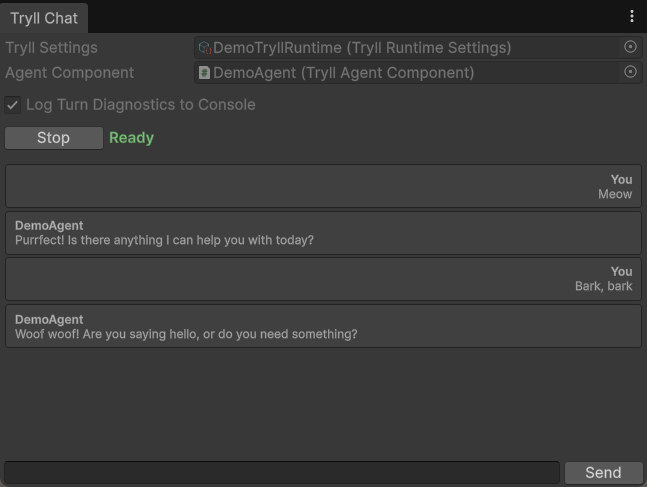
Chat creates its own editor-owned agent from the component's resolved graph and variable overrides, snapshotted at Start. Editing the component's Variable Overrides afterwards does not reach the running chat agent — press Stop and Start again to pick the new values up. (Unreal differs here: it maintains a transient preview link that applies Details edits live.)
Window → Tryll → Tryll Chat
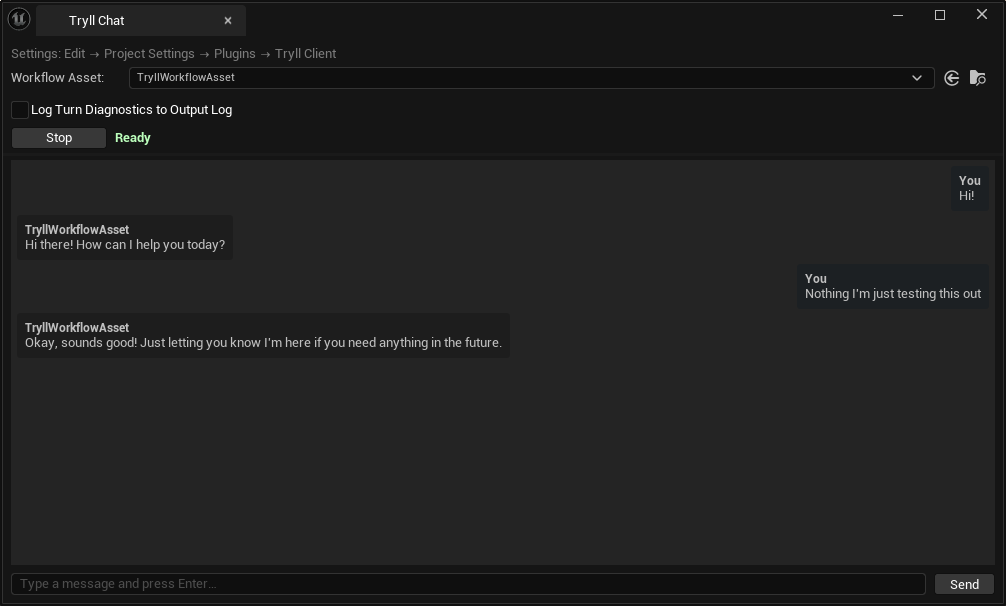
The panel opens as a nomadic dockable tab. Select a scene agent component in the configuration area (matching Unity):
| Field | What to assign |
|---|---|
| Actor | An actor in the editor world that has a UTryllAgentComponent. |
| Agent Component | Shown only when the actor has more than one Tryll agent component. |
Chat creates its own editor-owned agent from that component's resolved graph, variable declarations, and overrides. A transient preview link lets Details Variable Override edits update the chat agent without PIE. Structural changes (graph / diagnostics / dialogue-history) require Restart; variable value edits stay live. The settings path is shown as a reminder label.
Step 3 — start the session
Click Start. The status label steps through:
| Status | What is happening |
|---|---|
| Launching server… | Spawning tryll_server.exe |
| Connecting… | Opening TCP connection to 127.0.0.1:9100 |
| Configuring session… | Sending CreateSession to the server |
| Creating agent… | Sending CreateAgent with the selected component's workflow asset |
| Ready | Agent is live — input is enabled |
If the status turns red, see Common problems below.
Step 4 — chat
Type a message and press Enter or click Send. Replies stream into the
chat area token by token. The assistant name shown in each bubble comes from
the TryllAgentComponent's GameObject / actor name.
Turn diagnostics pane
Chat hosts the shared turn inspector in a right-hand pane (visible by default; toggle with Inspector ▸ / ◂). Resize and collapse state are remembered for Chat independently of Dialog Lab and the Agent Log.
That reference page covers the panel itself — route, timing, parameters, prompt & output, retrieval, tool calls, and raw JSON. What is specific to Chat is how you select a turn:
- Select an assistant answer (click the bubble) to inspect the turn that produced it.
- User bubbles are not selectable. The unit of inspection is an answer, and the work that led to it. (The Agent Log deliberately differs here — there, a sent row carries what the client actually put on the wire, which is worth inspecting.)
- Selection follows the newest completed answer until you click an older one; after that, newer completions leave your selection alone.
- Turns with no visible assistant text still get a compact selectable status row: Cancelled, Error, or No visible output.
Chat always enables diagnostics for the agent it creates, without dirtying the scene or asset. Component diagnostics authoring checkboxes are retired; Chat uses a per-create transient override, and the Agent Log uses a shared diagnostics-demand lease for agents created while capture is active.
Voice auto-send uses the same turn path as typed input — completed voice answers are selectable too.
For a process-wide narrative of what this client sent and received (including system events and deferred variable flushes), open the Agent Log (Window → Tryll → Agent Log / Tryll Agent Log).
Step 5 — stop the session
Click Stop. The window destroys the agent, disconnects the client, and terminates the server process it launched.
Server stops when the window closes
Closing the Chat Window while a session is running calls Stop automatically. Any in-flight request is abandoned.
Common problems
- "Assign a TryllRuntimeSettings asset" / "No TryllRuntimeSettings available"
- Unity only. The auto-search found nothing. Drag your
TryllRuntimeSettingsasset into the Tryll Settings slot manually. - "Assign a TryllAgentComponent from the scene"
- Unity only. The Agent Component slot is empty. Open the scene that contains your agent and drag the component into the slot.
- "Assign a UTryllAgentComponent from the scene"
- Unreal only. The Actor picker is empty or the selected actor has no
UTryllAgentComponent. Place an actor with a Tryll agent component in the level and select it in the Chat panel. - "Failed to launch server" / "Server launch failed: …"
- Unity — the package's
.Server/folder has no server build. Unreal — no variant folder under<Plugin>/Binaries/ThirdParty/TryllServer/resolves (theDefault/Releasesymlinks dangle); build the server (cmake --build) so the bundled folder/link resolves. - Stuck at "Connecting…"
- The server launched but did not bind port 9100 in time, or another process
holds that port. Check the Unity Console or the Unreal Output Log
(
[Tryll Server] …lines) for server-side errors. - "Model not found" during CreateAgent
- The model referenced in your workflow's
Generatenode is not in the server'smodels.json, or is not yet downloaded —CreateAgentfails fast rather than downloading it for you. Acquire it via the Model Manager, or add it manually — see Use Your Own Local Model.